This tutorial describes how to create a survey on We Advocacy: questions, rating scales, free text and results visibility for participants. The invitation and distribution are covered in the tutorial "Quizzes, surveys and forms: overview, invitation and distribution".
1. Create the survey
From Engagement > Surveys & Quizzes, click + New, then choose Blank survey or a survey template (eNPS, weekly team pulse, post-event satisfaction…).
2. Content step
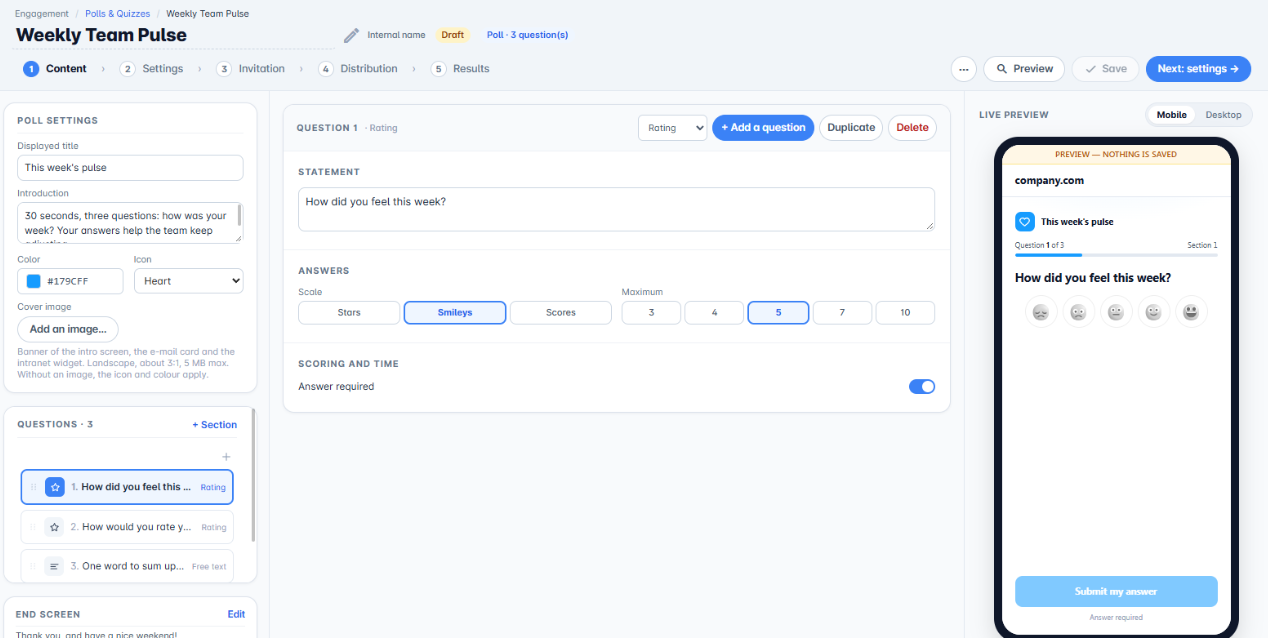
The Survey settings card sets the Displayed title, Introduction, Colour, Icon and Cover image. For a survey, a short introduction announcing how long it takes ("30 seconds, three questions") noticeably increases participation.
Then add your questions with Add a question, and group them into sections with + Section.
3. Pick the right question type
- Rating: choose the scale among Stars, Smileys and Scores, and the maximum among 3, 4, 5, 7 and 10. Ideal for mood or satisfaction.
- NPS: "Would you recommend…?" from 0 to 10.
- Yes / No: tick Offer "I don't know" so as not to force an answer.
- Choice: single or multiple choice, fixed or shuffled order. In a survey, no answer is "correct".
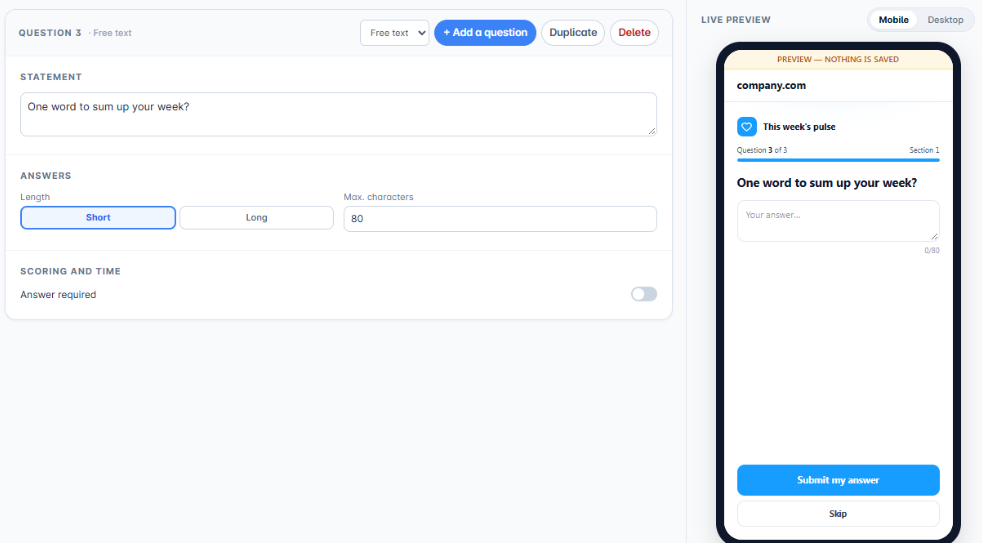
- Free text: Short or Long length, with a maximum number of characters.
For each question, turn Required answer on or off. An optional question shows a Skip button to participants.
4. The end screen
Click Edit in the End screen card to write the thank-you message shown once the survey is complete. The message accepts simple HTML formatting.
5. Settings step
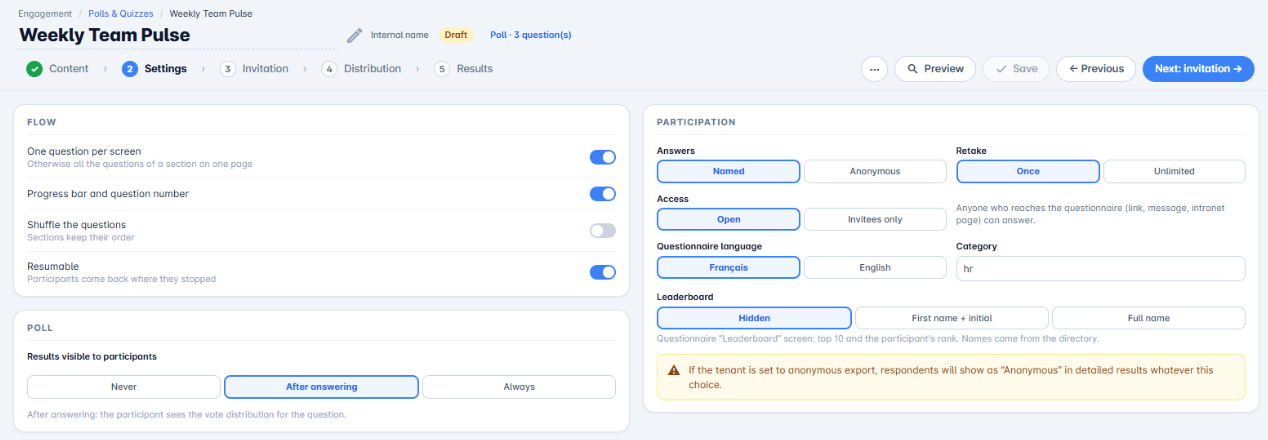
The Journey and Participation cards are shared by all three types (see the quiz tutorial). The Survey card has its own setting:
- Results visible to participants: Never, After answering (participants see how votes are split for the question) or Always.
Showing the split after answering is often what makes people want to answer the next survey.
6. Invite, distribute and follow up
Continue with the Invitation and Distribution steps, then follow responses in the Results step. For a recurring survey (a weekly pulse, for example), use Duplicate from the list to start again from the same questionnaire.
You now know how to create a survey.
Cet article a-t-il été utile ?
C'est super !
Merci pour votre commentaire
Désolé ! Nous n'avons pas pu vous être utile
Merci pour votre commentaire
Commentaires envoyés
Nous apprécions vos efforts et nous allons corriger l'article