This tutorial describes how to create a form on We Advocacy, to collect information without a score: registration, training evaluation, needs gathering. The invitation and distribution are covered in the tutorial "Quizzes, surveys and forms: overview, invitation and distribution".
1. Create the form
From Engagement > Surveys & Quizzes, click + New, then choose Blank form or a form template, such as "Training evaluation".
2. Content step
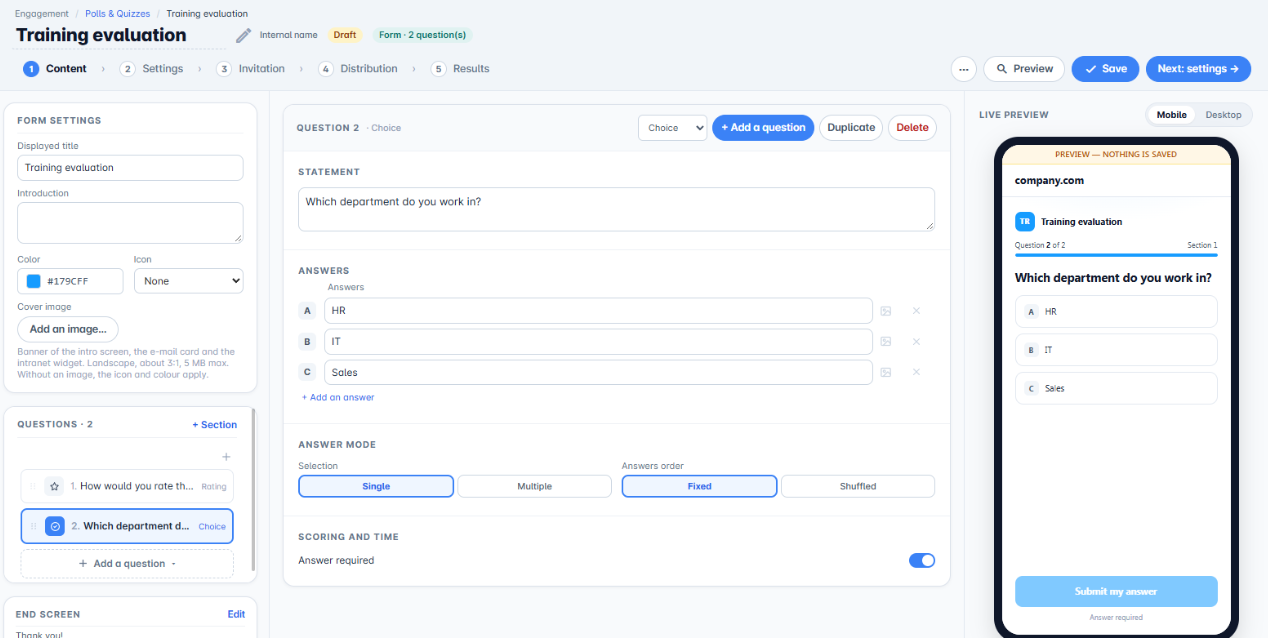
The Form settings card sets the Displayed title, Introduction, Colour, Icon and Cover image.
A form benefits from being split into sections: click + Section, then rename each section (for example "Your details", then "Your feedback"). The section name is shown to participants above each question.
3. Add the questions
Click Add a question in the relevant section and choose its type: Choice, Rating, NPS, Yes / No or Free text. In a form:
- use Choice with Single selection for a single-value item (department, site, time slot), and Multiple selection for a list of interests;
- use Free text for comments, with Long length;
- only make essential questions required: every unnecessary required question costs responses.
4. The end screen
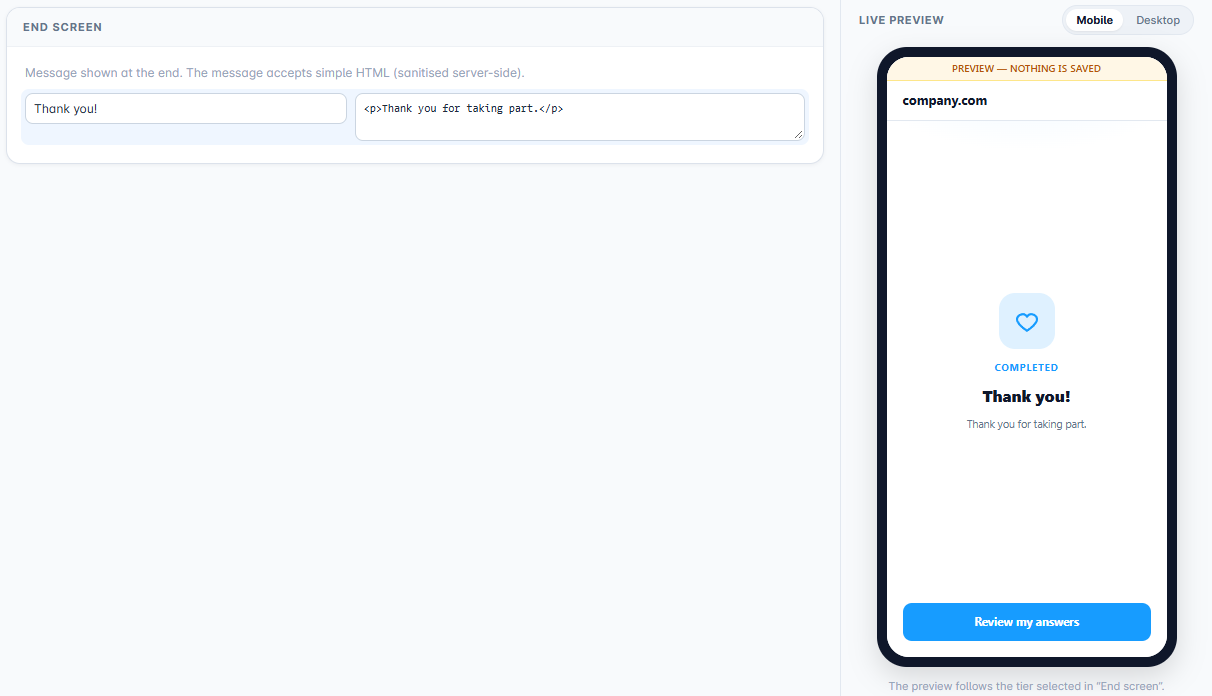
Click Edit in the End screen card and write a confirmation title and message. The message accepts simple HTML formatting. The Review my answers button lets participants read back what they entered.
5. Settings step
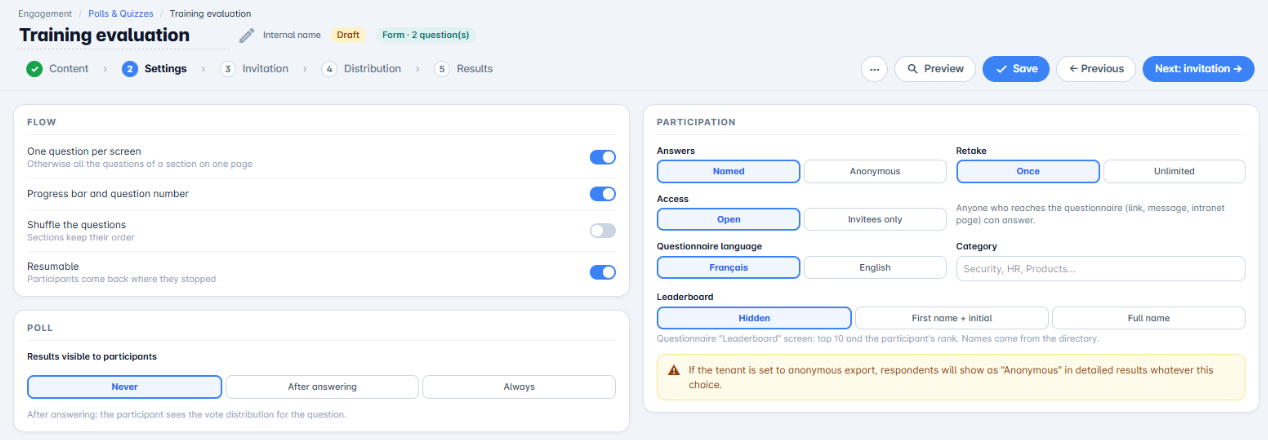
The Journey and Participation cards are shared by all three types (see the quiz tutorial). For a form, three settings deserve particular attention:
- Results visible to participants: keep Never, the default. Form responses are not meant to be shared.
- Responses: Named if you need to know who answered (registration), Anonymous otherwise.
- Replay: Once, to avoid duplicates.
6. Invite, distribute and use the responses
Continue with the Invitation and Distribution steps, then find the responses in the Results step, from which you can export the list of respondents as CSV.
You now know how to create a form.
Cet article a-t-il été utile ?
C'est super !
Merci pour votre commentaire
Désolé ! Nous n'avons pas pu vous être utile
Merci pour votre commentaire
Commentaires envoyés
Nous apprécions vos efforts et nous allons corriger l'article